
Squarespace's Best Updates of 2026(so far)
Squarespace has rolled out some massive updates in the first half of 2026. If keeping up with the tech is starting to feel like a full-time job, this video is for you.
I’m breaking down the best new Squarespace features so you can get your digital storefront out of manual mode. We cover the newest tools for e-commerce, payment processing, web design, and email marketing. Whether you want to set up payment plans, use mobile overrides for better design, or finally build those automated email drip campaigns, I'll show you exactly where to find these settings and how to use them to buy back your time.
Ready to hand the tech tangles over to an expert?
If your website needs an update but you absolutely do not have the time to do it, I can help. Click here to learn more about my 1 Day Website Tune-up and let me act as your digital paramedic for the day: https://www.calibratedconcepts.com/1-day-website-refresh
Transcript below!
-
00:00 Squarespace has really picked up the pace in iterating and creating new features for us, which is great. Uh, I'm able to do so much more for my clients with less code, which makes it really easy for them to maintain.
00:14 It's also giving you the power to do more DIY. But here's where it gets messy, is they're doing, making changes so fast, that unless it's your full-time job, it can be kind of hard to keep up.
00:27 If you're new here, my name is Ellie. I get real geeky about websites and business simplicity in tech. Uh, and today I'm going to break down all the changes that Squarespace has made in the first six months of 2026, so that you know what you can do with your website and you don't have to go digging for
00:45 everything and you can know exactly where to find it and how it works. So let's jump in. Okay. about the categories I'm going to talk about.
00:55 The first one is going to be e-commerce features. Uh, so helping you sell where you sleep and all the different changes they've made in the e-commerce world.
01:04 the second group is going to be about payments and admin settings that can help you free up time and help you protect your piece.
01:12 the third one is around marketing and how you can actually sell what you do. Alright, one little tip. Before we fully jump in, if you hit, inside Squarespace, hit the forward slash, you can find any of these settings that I'm talking about.
01:31 So, I will tell you where to find them, but if you get confused at all, go ahead and hit forward slash and search for what you're looking for.
01:39 Alright, jumping in. So, if you go to Settings, and then Selling, and then Cart, we have a new feature where you can have a, what they're calling a mini cart.
01:52 And so, I have this turned off because I don't have the e-commerce version of Squarespace, and that's because I'm a service-based business, primarily.
02:03 However, when you can have it so that it says added to cart, and it shows you a little mini version of what this looks like, and then you have.
02:10 a mini cart at the top where it shows everybody what they have bought. And then they can click on that, and it allows them to go to checkout or view their cart.
02:20 Or you can just have the confirmation pop-up that says, like, this has been added to your cart. So you have those, uhm, kind of extra features for your clients.
02:31 This will help drive down that friction to checkout. is a reserved cart and countdown timer. And this is found in the same place, settings, selling cart.
02:44 And so you can toggle this on if you have the e-commerce plans. And that allows you to allow them to hold those items, especially if you're somebody who makes a really limited quantity of things or one of a kind items, they can hold that in their cart for a set amount of time.
02:59 And it displays a countdown timer. It gives them that extra incentive of buy this now, or you might lose it.
03:06 Um, so that's so, so good. Squarespace has recently added a brand new feature to allow you to better filter your products while displaying them on your store.
03:18 So they've always had categories and that you were able to set categories and have subcategories and nest those. And so the, but this is going to be, make it so you can have multiple filter options.
03:29 So you can have, I'm going looking at shirts, but I'm only looking at large shirts and I'm only looking at blue shirts.
03:35 And so you can do that under organization and then you can use tags to do this. there's a little bit more information if you want to click in and learn exactly how the tags and filters work.
03:47 Um, but this is actually in beta at the moment, so if you don't see it on your site yet, it will be there very soon.
03:55 Another fun new feature is the ability to have inventory control. So you can now set quantity limits that a specific customer can purchase.
04:05 So you can say, people can only buy a maximum of four. Five of these, and it allows you to prevent maybe scalpers or resellers, um, it allows you to make sure that everybody gets some.
04:18 Uh, so depending on what you're selling, if you're selling, again, limited quantities of things or limited, uhm, runs of something, this can make it a little bit nicer so that everybody can have a piece of what you're creating.
04:30 Fun new shop features.
04:34 So first is, so right here we've got this grid. This is how Squarespace has always done it. And then when you go to edit the grid, you have a little bit of flexibility in design.
04:45 You could decide how many columns you want to cross. You can decide the shape of the images. You could decide whether you had the add to cart buttons and what that said.
04:55 So they've been adding to this for a while. Um, whether it was full or inset, uh, which didn't make a big difference for me, but you can change a little bit of these things.
05:04 But the newest thing you can do is change it to a list. So for some shops, this might make sense.
05:10 And obviously when I move this, my face here, um, there's a lot of things that I would want to change if I were going to use a grid for my own shop.
05:18 So I'd want to make sure that my images went back to being square or that I changed the, um, that I used the right dimension of images that I re-uploaded images.
05:30 I really like my shop as it is. So I'm going to just switch that back. Okay. And the final thing in the shop category that's brand new is if you click into any of your products and hit edit, you can now add sections below.
05:47 So you can go in and add FAQs. you can go in and add. Um, really anything you want. And I believe, let's see, let's test this.
06:00 If I were to put, say this at the bottom of it, then that is only for that product. So if I go in and do one for the next product, so this is the how to hire help toolkit and I go in and look at the communication toolkit.
06:15 It doesn't have that. So you can customize it for each one, but if you're looking to use the same one on a regular basis, I would recommend one of two things, either going in and like I did for the to hire help toolkit, use a saved section and you can add saved sections by using the heart and then to
06:34 this site. So you can design it out and reuse it over and over and over again. Alternatively, you can actually duplicate products.
06:41 So you can go ahead and go to edit and duplicate the product. And so it has all the same structure and then you just have to go and update the image, the title.
06:52 And of course, do not forget to update the URL. very, very bottom down here. And I could change that URL.
07:03 All right. So there's a little bit of overlap, but I really want to talk about this because this is not only applicable to businesses that sell physical products.
07:19 So let's talk a little bit more about some of these new options. First, payment plans. You've always been able to have subscription payments and you've been able to do payment plans and other Squarespace features like acuity, scheduling, like when you're selling courses and things through the platform
07:33 and member sites. Um, however, now in products, you can do this too. So if you go to price, I can say anything over $100 and I can say allow it to add a payment plan.
07:50 And so the, for the payment plan, you can decide what you want the deposit to be and how many installments are after that.
07:57 If you want it to be regular intervals or custom dates, and then you can decide if you want it to be weekly or whatever you need it to be.
08:04 And then it just auto calculates the payment schedule for you and amounts. And then you can set a deadline for that initial deposit.
08:11 If you want to, and so that means you can sell, say your coaching packages or, um, really anything, anything, anything, um, as a bundle with a payment plan, or maybe you're selling an event ticket and it's a pretty high priced event that you're doing.
08:28 Maybe it's a retreat or something like that. This allows you to have that all managed. It will just take all the payments that you don't have to think about invoicing, but brilliant news.
08:37 Along those lines, along those lines, Squarespace has made some updates to invoicing, which is on the side here, you can edit.
08:48 Let's edit this invoice. Under edits, you now have some custom fields you can add. So first off, you can, obviously, you've always been able to update the title and the name of the client and all those things here.
09:02 But custom fields, you can add in field names, purchase orders, values, and those kinds of things. So that's pretty new.
09:10 You also now have payment reminders and that is going to be a game changer. Again, no more manually chasing payments.
09:19 This will be automated it and you can turn it off, on, you can, um, it just makes it so much easier, right?
09:30 Payments and Admin, is the ability to set up a payment link. to use this, you're primarily going to be using the mobile app.
09:37 You can set them up here on desktop too, though, and you can set up a payment link. You can give it title, so you might say Ellie's, uhm, let's just say Braces, right, so for whatever it is you're doing, you can say it's a flexible amount, which allows them to change the amount, uhm, Or you can say,
09:53 you owe me $50. Uhm, what this is for, service or physical product, you can add an image if you want, so it might be relevant that you want to add something there, and then, uhm, if this is a flexible amount, you can set a minimum or a maximum up for that amount.
10:11 That might be nice, because it can allow them to add a tip or something along those lines. Then you can hit save, and then it gives you a QR code.
10:19 You can copy that link. We can email it. You can have someone take a picture of it. It's really great.
10:24 Also, in the app now, you can do tap to pay, which is so great, uhm, so if you're selling at markets or something like that, people can just tap and pay for something immediately with one of these payment links.
10:36 So, so good. And so that is also under the invoicing feature. Okay, so now we're here in what I call my sandbox page, so I can show you some of these changes that have been made in group three, which is the visual stuff.
10:55 This is the design and aesthetics and being able to just improve the way things look and feel and keep up to date with the way that modern websites are working.
11:02 So the first thing that you do is mobile overrides. So freaking excited. So if you click and toggle on the mobile version of anything, and then you're in the edit mode and you click on layers here, you can decide that you want that image not to show up on mobile and it just disappears.
11:21 Um, same or the audio one to just disappear. Um, I can decide if the search field disappears on mobile. So I'm so you can turn things off and on based on screen sizes and the design you want.
11:33 So maybe you have a lot of pictures in one section and it just doesn't make sense to have it. Then it's an easy fix.
11:40 Um, you can also reverse that. So if I decided that I only wanted something on mobile and I didn't want the search bar to show up on desktop, I can turn that off and it won't show up on desktop and I can design however I want this to look, but it will show up on mobile.
11:59 So this is a feature that we've had to do with code quite a lot if there was just a lot going on aesthetically on a mobile version.
12:05 Um, and it's really nice to be able to just do this natively. So the other thing is Squarespace now has a feature that allows you to stack things.
12:15 And you'll see I just did that so this is now a stack and I'm going to turn off the stack so you can kind of see what I've done.
12:23 So we have all these beautiful things in one grouping on the website, but look, they're not centered and I want to make sure that they all stay together.
12:31 No, no matter what screen size, if it's on a tablet or if they're on mobile, I really want them to stay in the right order.
12:37 Um, I really want to be able to add things to this page, but know that these three things always go in the same stack.
12:44 So you can do that. So if you click and then hit shift and click, click, and then this will pop up, you can hit stack blocks and you can see now they all go together.
12:54 So if now that makes it so much easier for me just to center everything. Um, I don't like how it's stretched this one out.
13:02 Um, so I can play around with that. It's also made this really small, so it might be worth playing with to see if I can get that just the way I want it.
13:13 Um, then in here you have a lot of features, how much space is between each item. We'll see what direction they stack, which is up and down or left or right.
13:22 Um, I can say that I really want the gap between things to be 60 pixels and that makes things a little bit different.
13:28 This side I want a white background behind things, like there's, it really is the sky's the limit. So, and then when I go to mobile, this stuff will still be stacked in the order I said.
13:39 Let's see, and then up here, you can see there is a reset all overrides and that will turn you back to just the regular mode.
13:52 Squarespace has added is, along those same lines, uhm, and some of those same features, is the ability to add more motion and depth.
14:00 So, if you go, and you are editing, say, this scene. stack, you can see in here, there, I can adjust the position of that stack.
14:09 I can center everything. But then you go a little bit further down, and you can see this. So you have the ability to animate when these things come in.
14:18 So, further, you can animate just this whole stack, uhm, and see what things look like when people hover over them.
14:26 You can say on press, so when someone clicks it. Uhm, on scroll, or on up here, so you have a lot of different settings, but let's say on hover, we want things to jump, right?
14:36 So that was pretty cool. Uhm, then you also have the option to adjust things here. So I can say, oh, I want this all to be 30% opacity, so it'll get a little bit transparent, right?
14:51 I can say I also want this all to be, to be rotated 90 degrees, and it just does that. I can say, oh, I want it to be 200% on the x-axis, so wider, uhm, and 100% on the y-axis.
15:04 Uhm, let's put a couple of these back so that it looks normal when we're doing this. Let's go with a 40%, maybe, angle here.
15:12 And then you can skew things, or offset things, so I can say, okay, well, I want these all to be.
15:17 Shifted, because maybe I'm doing something like I'm putting accents on the sides of the page, and I really want to make sure it stays real tucked into the sides, then you can move things over.
15:28 And you can see that it originally lives here, but it's been pushed over to here. And so there's so much you can do when you are editing, and you can do this with almost all blocks at this point.
15:38 There's not, it's not 100% of blocks, but it's getting very, very, very, very close. So I would adjust this maybe to 80%.
15:45 Let's put this back to zero, rotation, and then let's play with skew. So if we go to 50, that turns it diagonally, right?
15:53 50 degrees. If I also put this one to 50, then it makes it real wonky because it's skewing in both directions and it's just like crossed.
16:02 So it's interesting to think about where you want these things to anchor, all these things. It's just so much fun to play with.
16:09 Okay, the last thing I want to show you is, if you go into edit section, you've always had the option to add in these backgrounds, and you can put in pictures, you can, in the pictures you can select from libraries, you can browse backgrounds, you can add, use stock images, uhm, you can create art, and
16:28 moving art with Squarespace's native features here, and adjust the features of that, and the shapes, and all these, there's so, so much you can do, but the new thing is under video, if you go to add, you can now go to browse background videos, and search AI generated videos, and that might really well
16:45 align with what you're looking to do for your, for your background, so maybe you are a farmer, and you need some really nice pictures of wheat, this is for you.
16:53 Once you have picked an image, so let's pick this one, and add this in, then you have this lovely background, and you can adjust everything you can with, that you could have used for any video, so I can say, okay, I want that to be at half the speed, and make it just have really slow moving, and maybe
17:15 I want to add a little bit of a filter to it, a little bit of a blur, and that's that.
17:22 That's my new background. So, that is the last thing in the aesthetics area that they've changed this year, and the final thing is let's talk about marketing.
17:33 Okay, so. The first thing they've changed is that the search engine has improved substantially. So before, the, if you went to search for something on the website, and like, let's just look up one of my blog posts, so like if I put in the word time.
17:55 That would have been really, really slow. Thank you. So if I were to now put in maybe, it now will bring up all the things on my website.
18:04 This would have been so much slower, not that long ago. So it's really cool to, for people to be able to search your site and be able to use that block a lot more easily.
18:16 This has been a feature that people have been asking for, for so frickin' long from Squarespace, and I'm really excited to announce that it's finally here.
18:22 So if you're using email campaigns through Squarespace, you can now do drip campaigns. You can now connect lots and lots of emails and set custom timeframes for when they should go out, and have triggers that make sense for your business.
18:37 So, you can say, I want to offer a discount, and I want that to set up, to trigger for people who sign up for our site and hasn't made an order two days later, they get a discount.
18:47 But then I can decide, okay, what happens next, right? You didn't used to be able to do this. Now I can say, I want to delay, and then I want another email to go out, right?
18:58 So when you use action, you actually have a few options. You can send an email, you can add or remove tags, or you can have it manage your mailing list and have them add or be removed from a specific mailing list.
19:09 Um, that's really useful. The other thing you have is, so you have delays, you have actions, and you have conditions.
19:16 So you can create branching logic, like you can with almost every other email platform out there, and really customize it.
19:22 Customize the experience for the people on the other end of your emails. So that is such good news. It's been a long time coming, and I'm really, really excited that we can now drip campaign to the people who buy from your shop or sign up for your email list or for your courses.
19:37 It's very exciting. now you have, under Contacts, List and Segments, you have, this has been really updated lately, and so it auto-segments people, you can see it says Smart Segment, uhm, segments people based on customers, uh, repeat customers, people that have lapsed, you also have the option to use
19:58 bulk features now, and that's really, really great. So you can go ahead and click that, and you can add, you can tag people, or you can export them, or you can do all kinds of things that you couldn't do at once before.
20:12 So very, very handy, very much excited that Squarespace is taking their email system way more seriously, because I tended not to recommend it, unless people were looking for something really simple and had an e-commerce site that they could plug their products into the emails, because otherwise it just
20:29 wasn't useful. Okay, whew, that was a lot of different updates and features that Squarespace has added to for us, uh, in 2026 so far.
20:42 So I'm really excited that they are continuing to make things better for us, uhm, and I hope that this has helped you figure out how to elevate your site, uhm, for the next kind of phase of your business.
20:53 If you're like, whew, my website's behind the times, like, these are just some of the features that have come out in, say, the last year, year two, uhm, if you're kind of thinking, oh my gosh, there's so much that I'd love to implement on my website and I just don't have the time, get in touch, I have
21:10 power hours, I have call them now, one-day website 2.0. And, or we can just, you can send me over what you have on your mind, we can have a quick call.
21:20 No pressure, it's just, I'm always here as a resource. I've got loads on my blog, loads here on the YouTube, and I hope this has been useful.
21:27 If so, give it a like, subscribe, all those things.
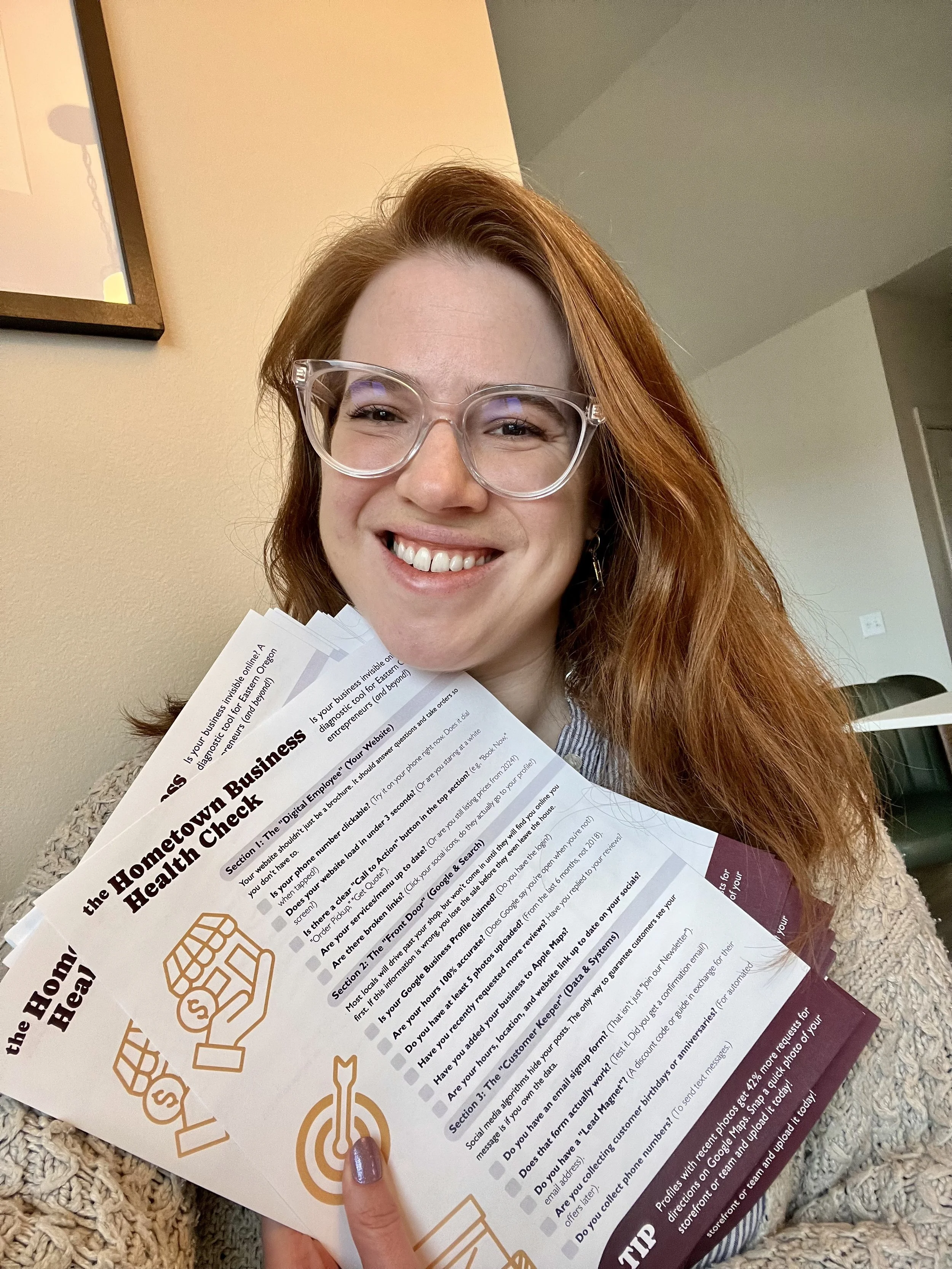
Is your business invisible online?
Most locals won't visit your shop until they find you online first. If your digital "Front Door" is broken, you lose the sale before they even leave the house.
Take 5 minutes to diagnose your digital presence with the Hometown Business Health Check 👇


We all know Google reviews are the hugely important for social proof and local SEO. But how do you actually get clients to write them without feeling awkward AF?